
The Result Grid is a view hard-coded to SystemWeaver's Test solution. It is used during the test execution phase to perform tests and report test results. The article describes the view and how to use it.
Prerequisites
- Familiar with the SystemWeaver meta model building blocks (e.g., Items, Parts and Attributes)
- Familiar with the SystemWeaver Explorer Interface and common operations
- An installation of the SystemWeaver Explorer client (swExplorer)
- The SystemWeaver Test meta model
The view is available when you select one of the below Test item types.
- Test Suite (JBTE)
- Test (JSES)
- Test Specification ( JTSP)
- Test Case (JTCS)
- Test Case Script (JTCA)
- Test Script (JTSC)
- Test Scope (JTSD)
- Artifact (AAR sub-types)
- Requirements (RQ and sub-types)
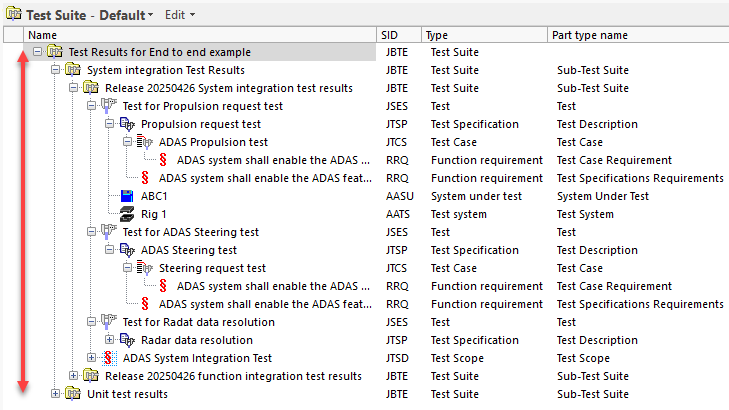
Select one of the test items in your structure and select the Result grid view via the Test ribbon group on the Items tab.

Getting Acquainted with the View
The view consists of a grid for viewing Test cases and Test case requirements, and for entering test results.
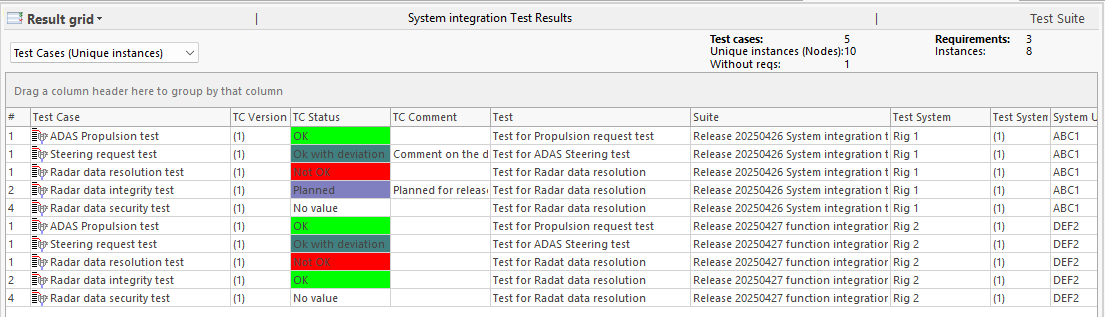
Test Case and Requirement Statistics
At the top right of the view, Test case and Requirement statistics are provided.

Test cases: The number of Test cases included
- Unique instances (Nodes): The total number of instances of the Test cases.
- Without reqs: The number of Test cases without Test case requirements
Requirements: The number of Test case requirements included
- Instances: The number of instances of the Test case requirements
Options for Viewing and Working with Results
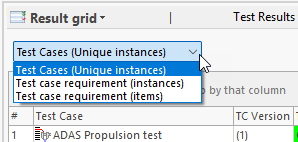
You can choose to work with the data either from a Test Case or Test Case Requirement perspective. The three available options are described here.
Test Cases (Unique instances)
This option is the default and lists unique instances of the Test Case items. The focus is on the Test Cases. The default sorting order of the Test Cases is according to the sub Test Suites, then Tests in each Test Suite, and then Test Cases in each Test Suite.
In the below example, there are five Test Cases found in two different Tests making for a total number of 10 instances.
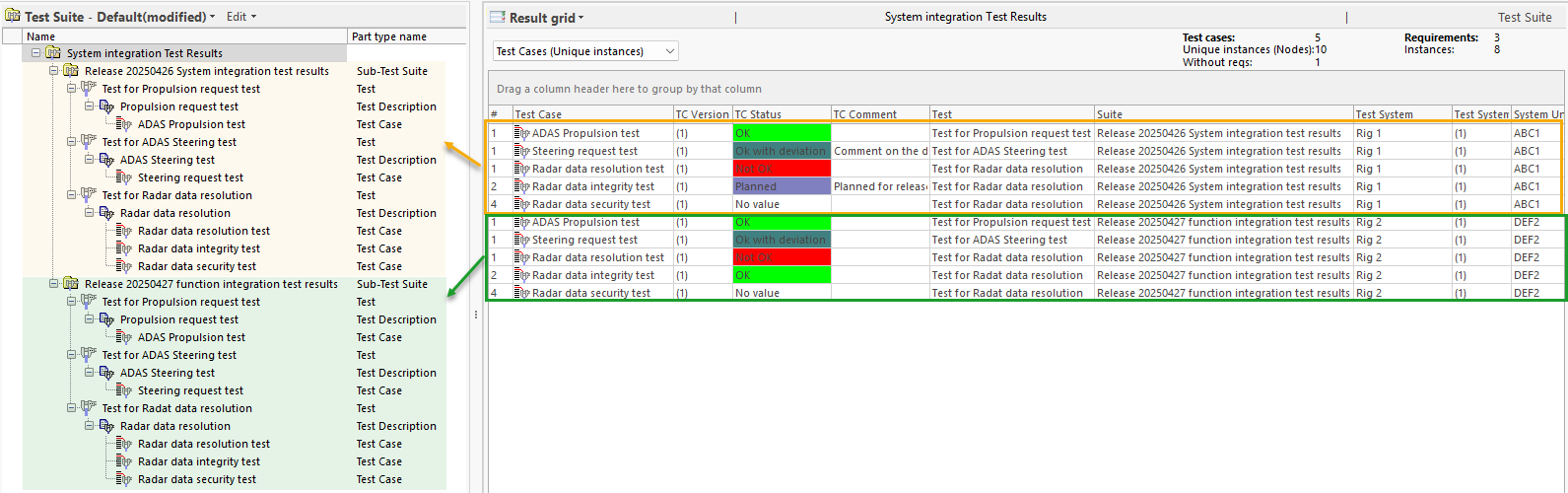
The following columns are displayed by default:
# column: The part # of the Test Case in the Test Specification
Test Case: The name of the Test Case
TC Version: The version # of the Test Case
TC Status: The status of the Test Case, e.g., OK, Not OK
TC Comment: A plain text comment.
Test: Collection of one or more Test Cases and Test Procedures
Suite: The Test Suite in which the Test is included. When standing within the context of a Test suite, the header informs you that you are "in context" of a Suite.
Test System: The complete test environment, including the SUT, test equipment, adapters, already tested components, etc.
Test System version: The version # of the Test System used
System Under Test (aka SUT): The system or component that is being tested. The SUT should implement the Item specification, e.g., ”functions”, "control units", logical component, EFeatures, Application SW Component etc.
System Under Test version: The version # of the System Under Test used
Test case requirement (instances)
With this option, the focus is on the Test case requirements. It lists the unique instances of all included requirements. This gives you the ability to set Test Case status for each instance of the requirement. and to see if, e.g., the testing of the requirement failed in one Test Case, but not in another Test Case.
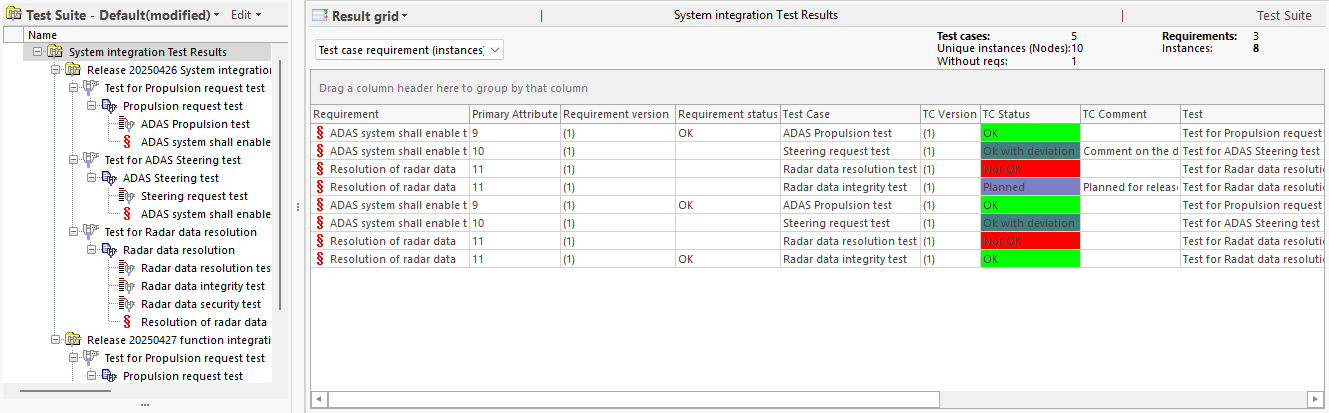
Aside from displaying the same information as the "Test Cases (Unique instances)" option, this option includes the following requirements columns by default:
Requirement: The name of the Test Case Requirement
Primary attribute: Use of this column is optional. The primary attribute is the Default attribute assigned to an item type, in this case a Requirement, that is defined by the number 0 in the meta model. Typically, it can be used to identify an item, such as a requirement ID. See Primary attribute and Item type Definition in the application Help for more information.
Requirement version: The version # of the Test Case Requirement
Requirement Status: The status of the Test Case Requirement. Based on an existing combined TC Statuses, the value is auto-generated:
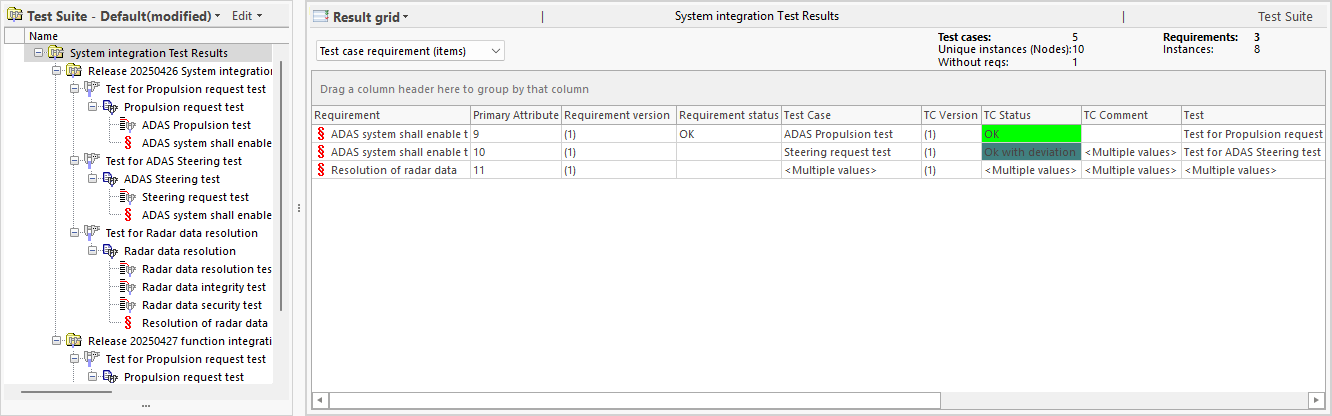
Test case requirement (items)
This third option is very similar to the "Test case requirement (instances)" option in that it also focuses on the Test case requirements. It displays a read-only grid listing all Test case requirements one item per row instead of each unique instance per row. If there are diverging Test case results and/or comments for a requirement, the view will indicate "multiple values".
Test case script
In the context of a Test case script, the focus of the grid is on the Test case's scripts.
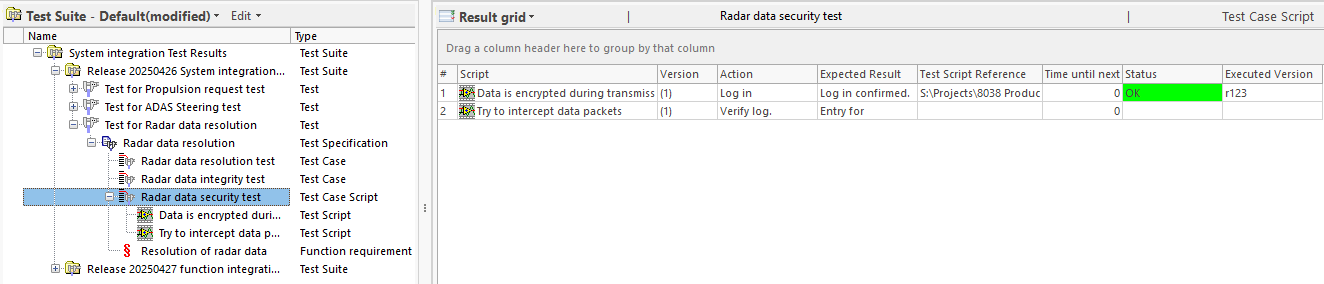
The grid includes the following columns for the script information:
Script: The name of the Test Script
Version: The version # of the Test Script
Action: The action of the Test Script
Expected Result: The expected result of the Test Script
Test Script Reference: To reference a file
Time until next: Time until next script can be started (ms)
Status: The test status of the Test Script
Executed Version:
Customizing The View
As with most standard grid-like views in SystemWeaver, you can make various on-the-fly changes to the view based on your current use case. For example, you may want to view a specific Attribute or Property. Options include:
Setting Test Case Status
There are two ways to set a Test case status.
One way is to use the drop-down list in the TC Status column to make your selection:
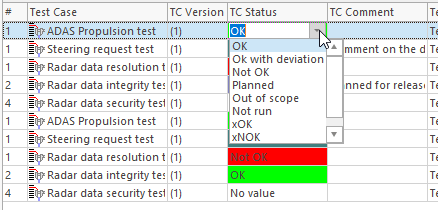
The other way is to right-click on the Test case row and use the menu there:
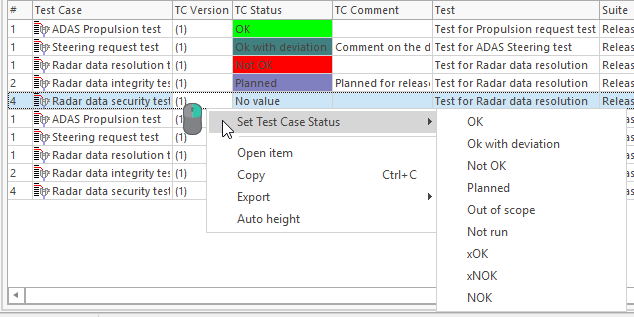
Multi-select of Test cases is not supported by design.