
This article describes how to set up the SystemWeaver MCP server from scratch, including provisioning broker connection credentials, creating the configuration file, registering the server with an AI host (e.g., Claude Code), and verifying the connection.
The SystemWeaver MCP server is a headless, stdio-based MCP server. It does not provide its own CLI for managing credentials. Broker connection credentials must be provisioned out of band using the companion GUI tool, which stores them encrypted for the current Windows user. The server only reads the stored credentials; it does not create or modify them.
- Requirements
- Recommendations and Known Limitations
- What You'll need
- Running the Credential Tool
- What's Next?
Requirements
- Windows with the .NET 9 runtime, or a self-contained build
- Network access to a SystemWeaver broker (default port 1769)
- SystemWeaver account: A valid SystemWeaver user account with login credentials, or Windows/Entra ID authentication. The user's SystemWeaver license must include the MCP Server add-on.
- An MCP-capable AI client
- SystemWeaver release R53 or later
- The SystemWeaver server installation is configured with a file repository
Recommendations and Known Limitations
- Consider disabling shell and sub-agent tools. If your AI client supports these tools, consider disabling them in sessions that use the SystemWeaver MCP server. During validation, smaller models sometimes attempted to access SystemWeaver tools through the shell rather than calling the tools directly.
Enable Version write only when needed. This capability includes release transitions, which cannot be undone.
Windows only. The server relies on Windows DPAPI for credential storage and on the SystemWeaver ClientAPI.
MCP only. The server does not provide a command-line interface (CLI).
What You'll need
To get started, check to ensure you have all of the required product files.
- SystemWeaverMCP: The headless MCP server (.NET 9.0 on Windows).
- SystemWeaverMCP.CredentialTool: A small WPF desktop tool that provisions the broker connection profile (run once per machine / Windows user).
- appsettings.json: Operational configuration read by the server (tool axes, proxy, timeouts, logging). NOT secrets.
- Credential store: %APPDATA%\SystemWeaverMCP\credentials.dat DPAPI-encrypted, scoped to the current Windows user. Written by the CredentialTool, read by the server. Never committed, never shared.
Running the Credential Tool
You will need to run SystemWeaverMCP.CredentialTool.exe to configure your connection identity. The connection identity includes the host, port, authentication method, login, password, domain, and server network ID. These details are not stored in a configuration file. Instead, use the companion GUI tool to provision the credentials once. The tool stores them encrypted for the current Windows user.
- Launch the credential tool by running SystemWeaverMCP.CredentialTool.exe. If an existing profile is available, the tool pre-fills the saved values so you can review or update them.
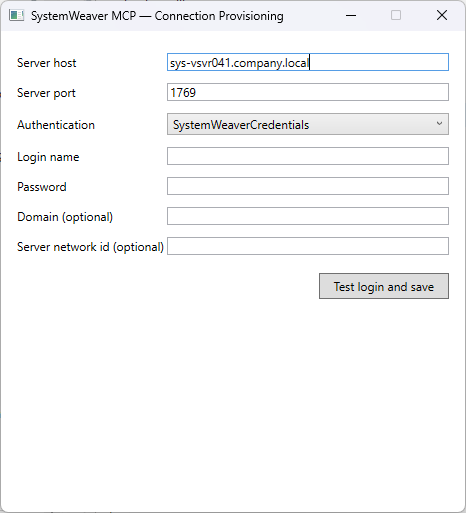
- Enter the connection details.
Field Description Server host The SystemWeaver broker hostname, e.g. sys-vsvr041.systemite.local.Server port The broker port. Defaults to 1769.Authentication Select one of the authentication methods described below. Login name
Required for credential-based authentication methods. Password
Required for credential-based authentication methods. The password is masked and never logged. Domain
Optional Windows/network domain. Server network ID
Optional server network identifier. - Select the authentication method. Choose the method expected by your SystemWeaver broker.
- SystemWeaverCredentials: Authenticates using a SystemWeaver username and password. Both are required.
- NetworkCredentials: Authenticates using a Windows/network username and password, with an optional domain. A username and password are required.
- NetworkAuthentication: Uses the current Windows user's integrated network identity. No password is stored.
- EntraIdAuthentication: Uses interactive Microsoft Entra ID sign-in. No password is stored. A browser or sign-in dialog opens during provisioning. This method requires the Entra components shipped alongside the server.
- Click "Test & Save". The tool first performs a live login test against the SystemWeaver broker. If the login succeeds, the connection profile is saved to %APPDATA%\SystemWeaverMCP\credentials.dat, encrypted using Windows DPAPI for the current Windows user. If the login fails, the profile is not saved, and an error message is displayed.
Note
- The store is per Windows user. The server must run as the SAME Windows user that provisioned it, on the SAME machine - DPAPI cannot decrypt another user's or machine's store (the server then reports "no profile" and refuses to connect, rather than crashing).
- To change the broker or rotate the password, just re-run the tool and Test & Save again.
What's Next?
Configuring the MCP Server App Settings. The complete instructions can also be found in the INSTALL.txt included with the MCP Server.