
This article provides examples for setting the Watermark capability. This is needed if you wish to have the watermark on Report and Document PDF printouts. If you do not wish to have the watermark on PDF print jobs, no configuration is needed. The default is no watermark.
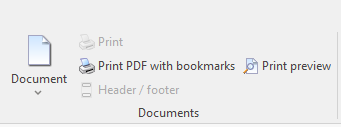
When the Watermark capability is enabled, the Watermark capability enforces watermarking for all Print to PDF with bookmark print jobs and disables the print options that do not include bookmarks (i.e., the Print button).
Watermark on All Print Jobs for All Users
<Capabilities>
  <Capability name="Watermark" test="true"/>
</Capabilities>
Result
All users are required to use the Print to PDF with bookmarks option, and the watermark appears on all print jobs. The Print button is grayed out.
Document
Report
Watermark on All Print Jobs for Some Users
<Capabilities>
  <Capability name="Watermark" test="CurrentUser = Owner or  CurrentUser.Name = 'admin'"/>
</Capabilities>
Result
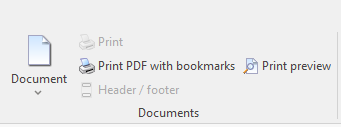
All users for which the Watermark path query results in "true" can use the Print to PDF with bookmarks option, and the watermark appears on all print jobs. The Print button is grayed out.
All users for which the Watermark path query results in "false" can use the Print to PDF with bookmarks option and there is no watermark. The Print button is available for all print jobs as well.
False
Document

Report

True
Document
Report
