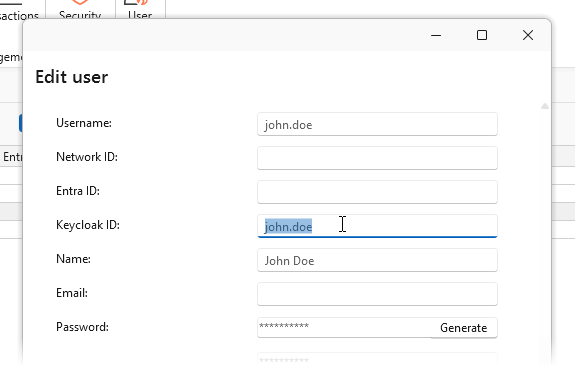
This article describes how to hide the Keycloak authentication button in the SystemWeaver client applications upon upgrade to a release that offers it (R52 and later). It also describes how to turn it off if it has already been enabled. The Keycloak authentication method is disabled by default and becomes active only after an administrator configures it for the server and user accounts have valid Keycloak IDs.
Prerequisites
- SystemWeaver release Kallebäck (R52) or later
Server Configuration
There are two scenarios for disabling Keycloak authentication depending on whether or not it is currently activated.
Skipping Activation
If you have not yet configured Keycloak, simply don't enable it for the upgrade:
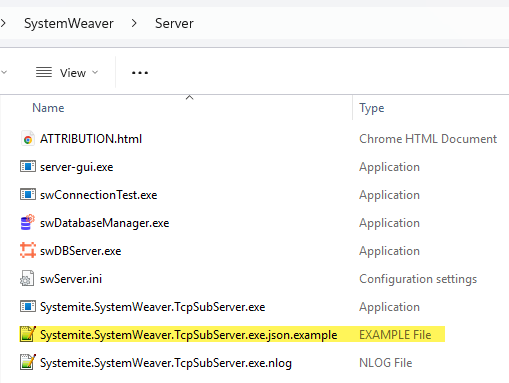
- Locate Systemite.SystemWeaver.TcpSubServer.exe.json.example in the delivery for your main server.
- Either remove the file from the Server folder, or do not remove the .example suffix from the file name.
- Continue the rest of the upgrade as normal. No server restart is required for this step specifically.
Turning Off Keycloak (Already Enabled)
If the file has already been configured and Keycloak authentication is live:
- On the main server, locate the active Systemite.SystemWeaver.TcpSubServer.exe.json file.
- Add the .example suffix to the file name (or move it out of the Server folder). There is no "enabled": false flag inside the file — presence of the renamed file is what gates the feature.
- Restart the SystemWeaver server for the change to take effect.
| Note: Turning off the server-side configuration stops Keycloak sign-in immediately, but the "Log in with Keycloak" button may still appear in already-distributed clients until the client-side step below is completed. |
| Note: Mirror servers do not read this configuration file, so none of the server-side steps apply to them. |
Client Configuration
Hiding the Login Button
The "Log in with Keycloak" button is added by a single client DLL. Remove it before distributing client installs to your users.
- In the Client and Admin_Architect installation packages, locate SystemWeaverKeycloak.dll.
- Delete/remove it from the client folder prior to distribution.
- Distribute the client as usual. The "Log in with Keycloak" sign-in button will no longer appear.
User Accounts
Once Keycloak is off, any Keycloak ID values already stored on user accounts are ignored, but clearing them avoids confusion later. This requires the 'Administrator' role.
- In the SystemWeaver client, go to Admin > Users.
- Open each affected user and clear the Keycloak ID field.