
This article describes the features and functionality of the SystemWeaver WeaverAI view.
Prerequisites
- Familiar with theSystemWeaver meta model building blocks (e.g., Items, Parts and Attributes)
- Familiar with the SystemWeaver Explorer Interface and common operations
- An installation of the SystemWeaver release Kallebäck (R52) or later
- You must have access rights to the AI view. Contact your Administrator if you are unsure.
- The SWExtension.AIExtension folder is located in your Client's swExplorerExtensions directory
- An SW Architect has configured and activated the SWExtension.AIExtension view.
Once you have been given access to the view and have the SWExtension.AIExtension included in your Client, you will see the view available when you select the Item types for which the view has been configured for your organization.
Example

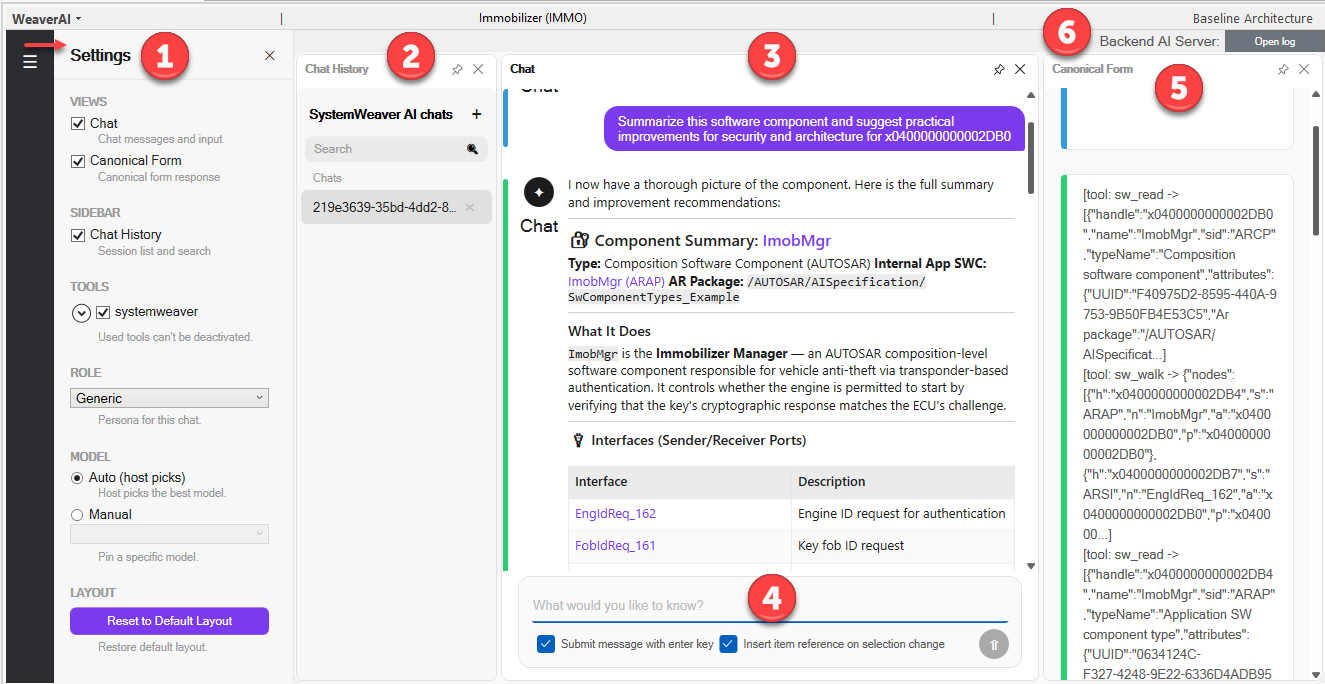
The WeaverAI view has the following panes:
- Settings: Controls visible panes, tools, roles, models, and layout.
- Chat History: Shows previous AI chat sessions.
- Chat window: The main conversation area for questions and AI responses.
- Canonical Form: Shows structured tool output and data used by WeaverAI.
- Backend AI Server controls: Starts, stops, and opens logs for the AI backend server.
- Message input area: Allows users to type and submit questions or instructions.
Settings
The Settings panal (1) controls what is visible in the view and which functions WeaverAI is allowed to use.
Views
The Views section controls which response panels are displayed.
- Chat: When enabled, the Chat pane is displayed. This pane is used to:
- Ask questions to WeaverAI
- View AI responses
- Continue an existing conversation
- Review previous answers in the current chat
- If this option is disabled, the main chat conversation area is hidden.
- Canonical Form: When enabled, the Canonical Form pane is displayed. This pane shows structured technical information, such as tool calls performed by WeaverAI, Handles, and related data. The Canonical Form is useful for checking what information WeaverAI used when generating its answer.
The Sidebar section controls whether the chat session list is visible.
- Chat History: When enabled, the Chat History pane is displayed. If this option is disabled, the chat history pane is hidden, giving more space to the main chat area.
Tools
The Tools section controls which SystemWeaver tools WeaverAI is allowed to use. These tools give WeaverAI access to SystemWeaver information. The more relevant tools that are enabled, the more context WeaverAI can collect before answering.
- SystemWeaver: This is the main tool group for SystemWeaver access. When enabled, WeaverAI can use the selected SystemWeaver-related tools under this group.
- swfind: Finds items by item type SID under a root handle. Returns lean nodes; capped at 500 results.
- swtype: Returns one item type with optional include=[parts,attributes].
- swwalk: Walks the SystemWeaver structure under a handle and returns a flat array of lean nodes. Short keys are: h=handle, s=sid, n=name, a=ancestorHandle, p=parentHandle. Depth is clamped to 1..3. Use swread to fetch content for any node of interest.
- swtypes: Provides a filterable, paged catalogue of item types. Returns { types: [{sid, name}], totalMatching, truncated }. Descriptions are not included; use swtype to fetch a type’s parts and attributes.
- swread_attribute: Provides an envelope-free fast path for reading a single attribute on a single item. Returns { value } or { notFound: true }.
- swsearch_metamodel: Searches the metamodel by term, optionally restricted to kinds: item | part | attribute.
- swread: Reads content for up to 50 items in a single call. Use the fields projection to omit fields you do not need; only requested fields appear in the response. Description is truncated at max_description_chars, with a default value of 2000.
Role
The Role section defines how WeaverAI should behave when generating responses.
Roles are configured by the SystemWeaver architect and made available to end users as predefined options. The end user can select a role based on the intended use case.
The selected role may influence the tone, focus, level of detail, and type of response generated by WeaverAI.
Model
The Model section controls which AI model is used. When Auto is selected, the host automatically chooses the best available model. When Manual is selected, the user can choose a specific model from the dropdown list. Supported models are OpenAI, Claude/Anthropic API, LM Studio, Ollama
1.6 The Layout section provides view layout controls. The Reset to Default Layout button restores the WeaverAI panels to their default positions and sizes.
Chat History
The Chat History pane (2) shows previous AI conversations.
- The search field allows the user to search existing chat sessions. This is useful when there are many previous conversations.
- The chats list shows available AI chat sessions. Selecting a chat opens that conversation in the main chat panel.
- The + button creates a new AI chat session.
Chat Window
The Chat pane (3) is the main interaction area where the user asks questions and reviews WeaverAI responses.
Message Input Area
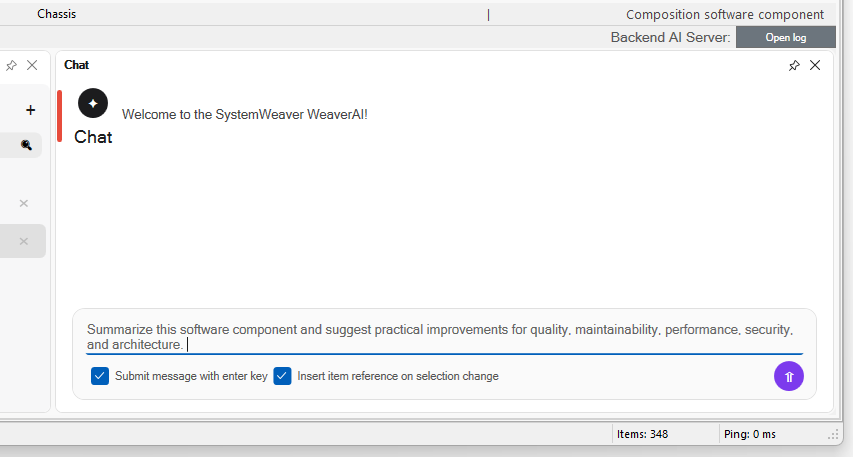
The user types questions or instructions into the message input box (4). Example prompts:
- “Summarize this software component.”
- “Review this item and identify possible issues.”
The submit button sends the message to WeaverAI. When the Submit message with enter key checkbox is enabled, pressing Enter submits the message. If the checkbox is disabled, Enter can be used for line breaks, depending on the input behavior.
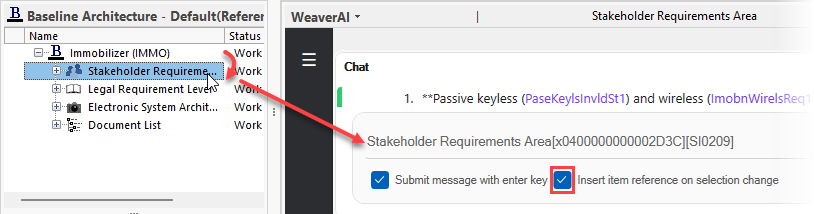
Insert item reference on selection change does just that when you move from one item to another.
Canonical Form
The Canonical Form pane (5) shows the structured data and tool output used by WeaverAI.
This is useful for transparency and verification. Users can inspect the Canonical Form to understand what information WeaverAI collected before producing its response.
Backend AI Server Controls
WeaverAI requires the backend AI server to process requests. It is running by default when activating the WeaverAI. It can also be Started/Stopped manually if needed (6).
- Start: Starts the backend AI server. This button may be disabled if the server is already running.
- Stop: Stops the backend AI server. Use this when the AI backend should be shut down or restarted.
- Open log: Opens the backend AI server log. The log is useful for troubleshooting problems such as, Server startup issues, Failed requests, Tool errors, Model connection issues, or Unexpected AI behavior