
Microsoft Entra ID (formerly known as Azure Active directory) can be used for authenication in the swExplorer and the swArchitect clients as well as the SystemWeaver ClientAPI. This provides the added benefit of multi-factor authentication (MFA), Single Sign-on (SSO), easier offboarding, etc . This article describes how to set up Entra ID authenication with SystemWeaver.
- Prerequisites
- Registering the Application
- Server Configuration
- Setting up SystemWeaver User Accounts for Entra ID
Prerequisites
- An Azure account that has an active subscription.
- The Azure account must be at least an Application Developer.
- A workforce or external tenant.
Registering the Application
- Sign in to the Microsoft Entra Admin Center as at least an Application Developer.
- If you have access to multiple tenants, use the Settings icon in the top menu to switch to the tenant in which you want to register the application.
- Browse to Entra ID > App registrations and select New registration.
- Enter a meaningful Name for your app, for example identity-client-app. App users can see this name, and it can be changed at any time. You can have multiple app registrations with the same name.
- Under Supported account types, specify who can use the application. We recommend you select Accounts in this organizational directory only for most applications.
- Select Register to complete the app registration.
- The application's Overview page is displayed. Record the Application (client) ID and the Directory (tenant) ID, which uniquely identifies your application and is used in your application's code as part of validating the security tokens it receives from the Microsoft identity platform.
- Click on the Redirect URIs link found in the Essentials section.
- Click on Settings in the horizontal menu.
- Change Allow public client flows to Enabled and then click Save.
- Select Overview from the menu in the left pane.
- Click on the Redirect URIs link found in the Essentials section.
- Click on Add Redirect URI found in the horizontal Redirect URI configuration menu.
- Click on Mobile and Desktop Applications button found in the right pane.
- Leave the three upper checkboxes empty. In the textbox below the checkboxes, enter the following:
ms-appx-web://microsoft.aad.brokerplugin/<Client ID>
Please refer to item 7 for details about obtaining the Client ID. - Click Configure.
You have now configured the Entra ID part of the integration with SystemWeaver.
Grant Admin Consent (external tenants only)
Once you register your application, it gets assigned the User.Read permission. However, for external tenants, the customer users themselves cannot consent to permissions themselves. You as the admin must consent to this permission on behalf of
all the users in the tenant:
- From the Overview page of your app registration, under Manage select API permissions.
- Select Grant admin consent for < tenant name >, then select Yes.
- Select Refresh, then verify that Granted for < tenant name > appears under Status for the permission.
Server Configuration
To utilize Entra ID authentication for SystemWeaver, there is one additional configuration file needed called Systemite.SystemWeaver.TcpSubServer.exe.json. It is required for the main server installation. A separate .json is not needed for mirror server installations.
Example
{
 "AzureAd": {
  "TenantId": "b4444444-c222-3333-ba2a-6666666ab6ad",
  "ClientId": "88888888-eeee-4444-ace4-6555555be66c",
  "RedirectUri": "http://localhost/",
  "Scopes": "User.Read;CUSTOMSCOPE"
  }
}- Copy the provided example json file to your main server installation.
- Open the file in a text editor app and replace the dummy values for “TenantId”, “ClientId”, and "RedirectUri" with valid values from your Azure AD:
- TenantId: (Required) The unique ID of your Azure AD tenant (organization).
- ClientId: (Required) The Application (client) ID for your registered app in Azure AD.
- RedirectUri: (Required) The callback URL that Azure Active Directory (Azure AD) will redirect the user to after they sign in or grant permissions. The redirect URI must be registered exactly the same in your Azure AD app registration under “Authentication” → “Redirect URIs”.
- Scopes: (Optional) Custom scopes are also supported. If there is more then one scope, separate them with ";".
- Save your changes and remove the .example suffix from the file name.
- Restart the server.
Setting up SystemWeaver User Accounts for Entra ID
A SystemWeaver Administrator must enter the Entra IDs in the SystemWeaver user accounts. To set up user accounts for Entra ID authentication, enter the user's User Principal Name (UPN) from Entra ID in the Entra ID field in their user profile using the swAdmin2 client.
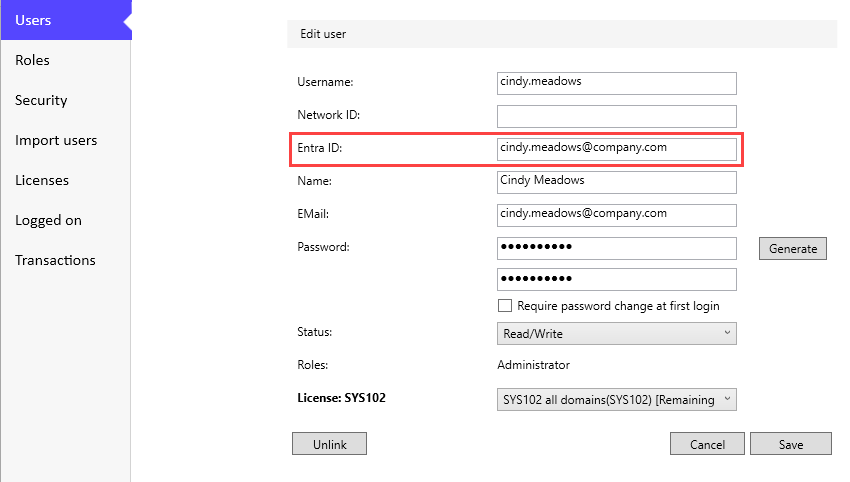
A user account must have at least one of the following login alternatives saved in their profile:
- Network ID
- Entra ID
- Password
An Entra ID can only be used in one user account.
Once the above steps are completed, users can log in using Entra ID Authentication.