
This article describes how to log in to a SystemWeaver server using a SystemWeaver client application.
- Prerequisites
- Password or Network Authentication
- Logging in for the First Time
- Unable to Log in?
- Logging in to a New Session
- Using Proxy
Prerequisites
- An installation of a SystemWeaver client
- An activated SystemWeaver user account
The following information is required for login:
Server: Enter the address to the SystemWeaver server. Your swExplorer client might be configured to use a specific server. In that case, a server (and Port) will be pre-populated. Otherwise, refer to your local user information (which might be found on the swExplorer Home Page), or contact your SystemWeaver Administrator to get the correct server information. If you are working against several servers, there is a drop-down for your convenience that will list all servers you have previously logged in to.
Port: Enter the port used by the SystemWeaver server.
Password or Network Authentication
The swExplorer and swArchitect clients provide users with the option to log in using three different options, depending on which authentication methods are allowed by your organization.
- Unique username and a password
- Network ID credentials
- Entra ID credentials
Password Authentication
Login: Enter your login name. Your login and password should have been given to you by your organization.
Password: Enter your password here. If you used the Login as ... option the last time you logged in, the Login box will be hidden. Click the More/Less button to see the box.
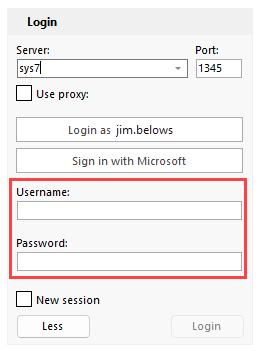
Each time you log in to swExplorer, the server, port and username are remembered for future use.
Network ID Authentication
If your organization is using network login accounts for authentication, you simply need to click the Login as ... button to log in instead of entering a login name and password.
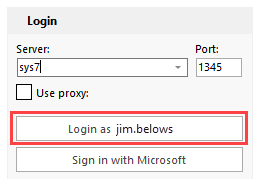
If you would like to use your network authentication within another user's Windows session, hold down the Shift key and right-click on the client application/shortcut. Select Run as different user. You can then enter your network authentication credentials to log in to SystemWeaver.

Entra ID Authentication
If your organization has configured a SystemWeaver server to accept Entra ID authentication, you can click the Sign in with Microsoft button to use your Entra ID to log in. The first time that you log in, you will need to grant access to the application to use Entra ID.
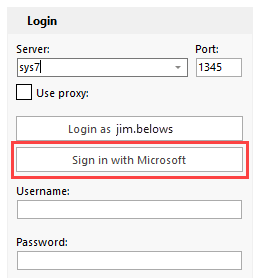
Next, choose the Windows Entra ID account to use for sign in.
Logging in for the First Time
The first time that you log in, you have to specify which server to log in to along with your login credentials.
- Open the client.

- Click on the More button.
- Enter the Server and Port information given to you by your Administrator.
- Enter your login credentials provided by your organization.
- Click Login.
You are now logged into the server. The next time you log in, the client will remember the server and port information from your last login.
Unable to Log in?
If your client cannot connect to the server, see Troubleshooting the swExplorer.
Logging in to a New Session
Each time you log out of SystemWeaver, your session will remain stored so that the next time that you log in, you can resume working in the same place where you left off. All active pages will remain open as you left them. If, for any reason, you want to start fresh without any pre-loaded tabs and pages, check the New session box when logging in.
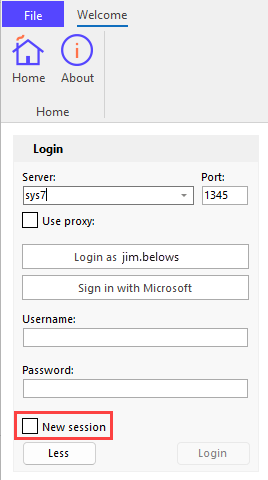
This option may be desired especially if you were working in a large model or project the last time you were logged in since it may take a while for the swExplorer to load a large stored page. If you feel that you just want to get in as soon as possible, New session can be a good alternative. Remember that there is a favorites concept which allows you to store direct links to your most used data, sparing you the work of having to launch the search functionality to get started.
Using Proxy
If your SystemWeaver server is located outside of your network, you can use the Use proxy option to connect through a network proxy.

Ask your network administer for the information you need to supply for the proxy connection.
Two alternative proxy protocols are supported:
- SOCKS (preferred alternative)
- HTTPS
In case the proxy requires username/password authentication, you'll need to enter this information into the Proxy Login and Proxy Password fields. The username and password is often your Windows domain login.